Peacock TV: How to Activate on TV
Note: Stay safe — use only the official channel website and activation website.
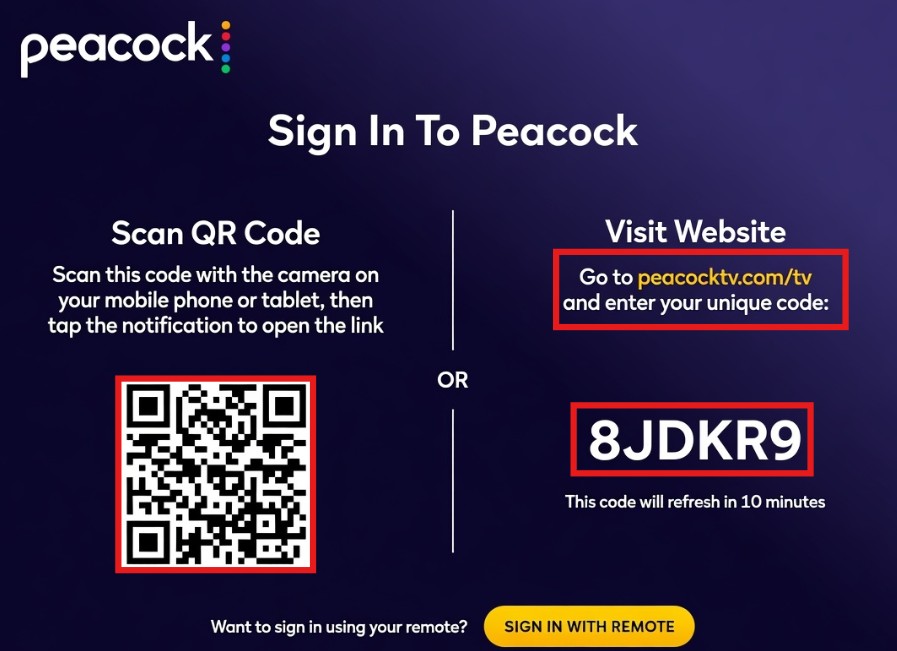
- Open the Peacock TV app on your Android Smart TV and select “Sign in”.

- QR code and 6-digit activation code will appear on your TV screen.

- Open a web browser on your phone, tablet, or computer and go to peacocktv.com/tv.
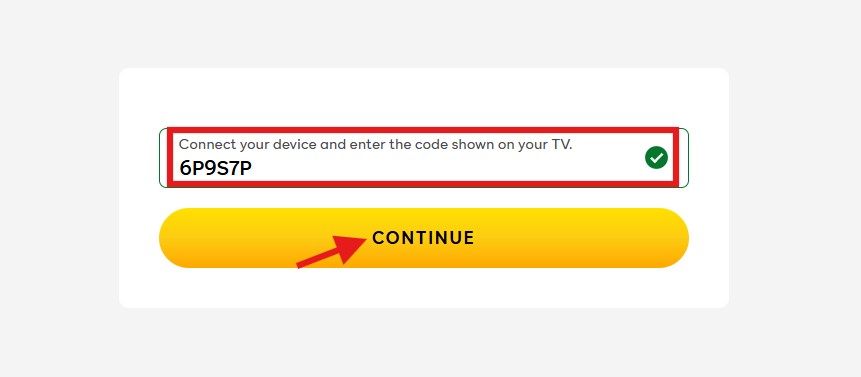
- Enter the 6-digit code displayed on your TV, then click “Continue”.
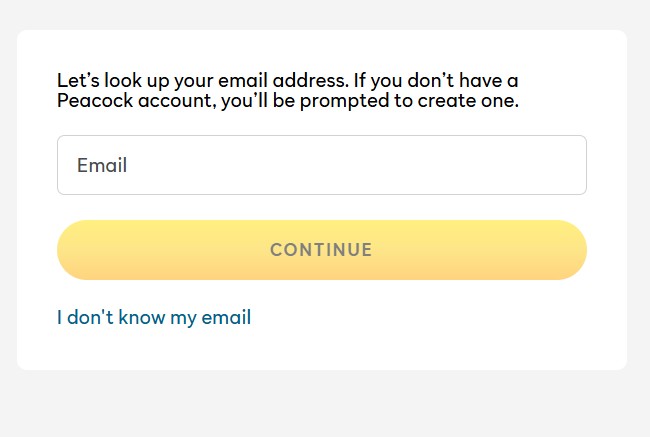
- Enter your email, then click “Continue” to sign in or create a new account.
Independent guide: StepsWoo is not affiliated with Peacock. Enter your account credentials and TV code only on Peacock’s official website, not on this page. The on-screen wording may vary by TV model and app version.
Before you enter the TV code
Keep the Peacock app open on your TV while you use a phone or computer to complete activation. Check that both devices have an internet connection. If the TV offers a QR code, you can scan it instead of typing the address, but confirm that the page opens on peacocktv.com before signing in. Peacock’s current official activation help explains the device linking process.
If the code does not work
- Code expired: Return to the Peacock app on your TV and request a fresh code. Enter the new code promptly.
- Code rejected: Compare every character with the TV screen and check that you are using Peacock’s official activation page. Avoid entering a space before or after the code.
- No code on the TV: Reopen the Peacock app and choose Sign In again. If the screen still does not load, restart the app and check the TV’s internet connection.
- TV still asks you to sign in: Wait briefly for the app to refresh. Then close and reopen it, and confirm you signed into the intended Peacock account on your phone or computer.
Which page should you use?
Use the activation address shown inside the Peacock app on your TV. If a saved bookmark or an older guide points somewhere else, start at Peacock’s official device activation page and follow its current instructions. Never share your activation code, password, or payment details in a comment or with a site claiming to be Peacock support.